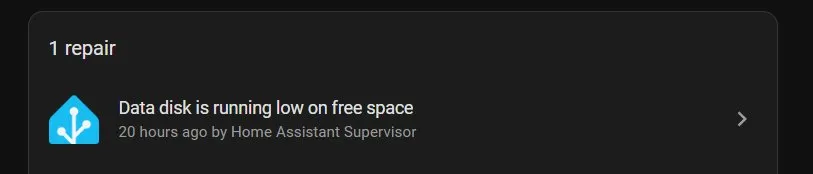
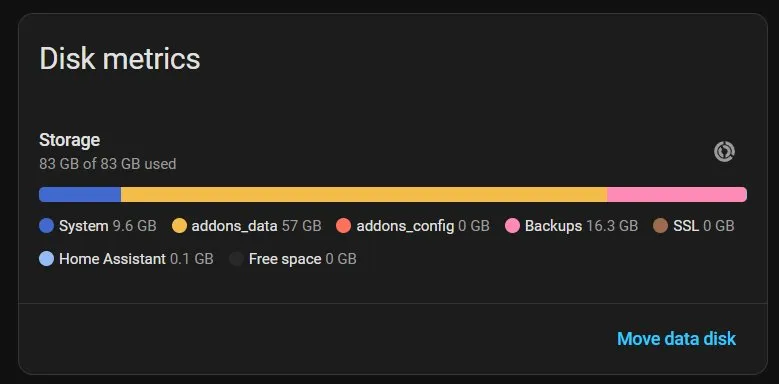
So I’m getting a “Data disk is running low on free space” warning from Home Assistant. Cool. 83GB of 83GB used. The whole drive is full!
I check Settings, System, Storage and it breaks down where everything is going. 57GB in addons_data (that’s my MariaDB database, which is a whole other problem for another day), about 13GB for system stuff, and then… 16.3GB in Backups.
Alright, easy fix. I’ll just go delete some old backups and free up that 16 gigs.
Except when I go to Settings > System > Backups…
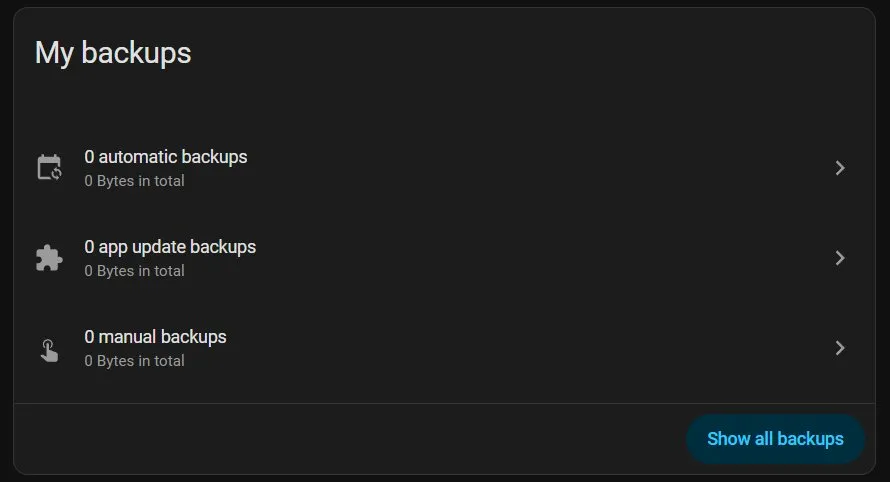
Nothing. Zero automatic backups. Zero app update backups. Zero manual backups. According to this screen, I have no backups at all.
But Storage says 16GB of backups exist. So what gives?
Digging Into the File System
The UI clearly wasn’t going to help me here, so I opened up the terminal. I use the Advanced SSH and Web Terminal addon for stuff like this.
First thing, let’s see what’s actually in the backup folder:
ls -lah /backup/total 16G
drwxr-xr-x 2 root root 20.0K Feb 13 23:15 .
drwxr-xr-x 1 root root 4.0K Feb 18 19:44 ..
-rw-r--r-- 1 root root 5.1G Jan 22 05:20 Automatic_backup_2026.1.0_2026-01-22_05.14_00003847.tar
-rw-r--r-- 1 root root 11.2G Feb 13 05:38 Automatic_backup_2026.2.0b1_2026-02-13_05.24_42819156.tar
There they are. Two .tar files. One from January 22nd at 5.1GB, one from February 13th at 11.2GB. That’s my 16GB right there, sitting in /backup/ clear as day.
So the files exist. The UI just doesn’t see them. Or won’t show them. Something is off.
Checking the Backup Registry
Home Assistant keeps a registry file that tracks backup metadata. I wanted to see what it thought about these backups before I removed them:
cat /config/.storage/backupHere’s the interesting part of what came back:
{
  "backups": [
    {
      "backup_id": "d927e41a",
      "failed_addons": [
        {
          "name": "MariaDB",
          "slug": "core_mariadb",
          "version": "2.7.2"
        }
      ],
      "failed_agent_ids": [
        "cloud.cloud"
      ]
    }
  ],
  "config": {
    "last_attempted_automatic_backup": "2026-02-18T05:08:03.000813-06:00",
    "last_completed_automatic_backup": null
  }
}
See that last line? "last_completed_automatic_backup": null
Home Assistant has never successfully finished a backup. Not once. Every single automatic backup has failed partway through.
Looking at the failure reasons, MariaDB is failing (my database is way too big at 46GB plus) and the cloud upload is failing too. So the backup starts, creates a .tar file, hits MariaDB, chokes, and gives up. But it leaves the partial .tar file behind.
My best guess is the Backups UI only shows completed successful backups. These partial failures still exist on disk eating up space, but since they never finished, the UI pretends they don’t exist.
Now I want to be clear here. I’m running one of the revisions of Home Assistant 2026.2.0 beta, so I have no idea if this is normal behavior, a bug in the pre-release version, or something else entirely. I’m just documenting what I found on my system.
Clearing the Orphaned Backups
Since these are incomplete backups that never finished anyway, they’re safe to delete. I’m not losing anything useful by removing them.
rm /backup/Automatic_backup_2026.1.0_2026-01-22_05.14_00003847.tar
rm /backup/Automatic_backup_2026.2.0b1_2026-02-13_05.24_42819156.tar
Done. 16GB freed instantly.
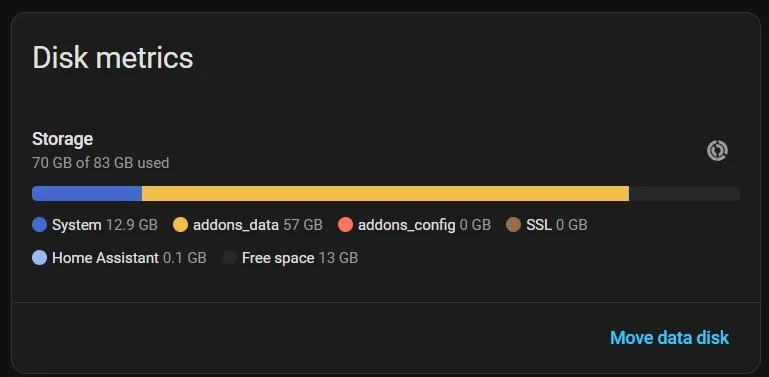
Storage now shows 70GB of 83GB used with 13GB free. Much better.
The Underlying Problem Still Exists
This fixed the immediate disk space issue, but I’ve still got a bigger problem. My backups are failing because my MariaDB database is enormous. That 57GB of addons_data is mostly one table in MariaDB that’s grown out of control. Until I deal with that, every automatic backup is going to fail and leave another orphaned .tar file behind.
That’s a project for another day though. For now at least I’m not running at 100% disk capacity.
Quick Commands if You’re in the Same Boat
Check what’s actually in the backup folder:
ls -lah /backup/Check the backup registry to see if there are failures:
cat /config/.storage/backup | head -50Delete orphaned backup files (make sure you’re okay losing them first):
rm /backup/*.tarIf you’re seeing backups taking up space in Storage but nothing showing in the Backups UI, you probably have the same issue I did. Failed backups that never completed but still left files behind.